SalesForce Chatter Web Part

You asked for it – the Chatter for SharePoint web part is now available! Download it right now and try it out in your SharePoint farm. The evaluation version is good for 15 days and will demonstrate all of the features of the web part – with only the minimum of nagging and annoying restrictions.

https://marcrdavis.wordpress.com/chatter-for-sharepoint/


Site and Farm-wide System Messages

9/5 UPDATE: The System Messages solution is now available for download! Click here for details.

So what the heck does that title mean? If you’ve been following my blog you already know what we’re talking about – SunGard’s SharePoint Intranet and all the cool things we are doing with SharePoint. This is the next installment – broadcasting informational and/or critical alerts to our Intranet users.

Useful for a variety of reasons: Alert users when a system or service is down; a new feature has been deployed; a new flavor of coffee is available in the kitchen on the 4th floor; the possibilities are endless.

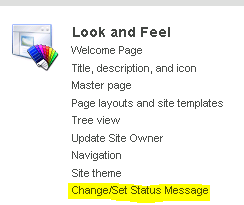
So this was fairly simple, thanks to SharePoint 2010’s native status messaging API – SP.UI.Status. We created an interface for site or farm administrators to set and control messages:

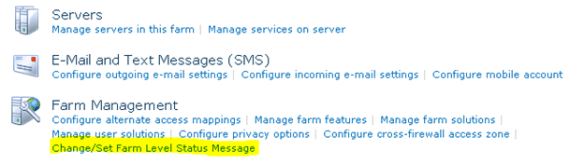
The setting of farm-wide messages is managed through Central Administration:

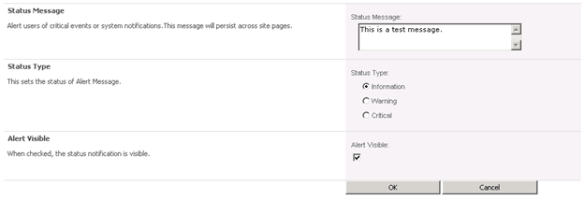
Administrators can then set the message text (supports embedded URLs), the alert type, and if the alert is visible:

The settings are stored in a property bag and picked up by code in our master page:

(Example above is incomplete for brevity – missing executeQueryAsync call and related code)

When alerts are active – they show up on the site pages (or farm-wide):

Informational:

Warning:

Critical:

Another simple feature that leverages and extends the native functionality of SharePoint by allowing us to broadcast messages to our Intranet community. There’s more to come – we’ve hardly scratched the surface on what we’re doing with SharePoint. Hope you found it interesting. Be sure to look for my tweets and blog updates from the SharePoint Connections Conference starting March 26th.

Managing and Identifying SharePoint Site Owners

1/26/2019: Site Owner Manager 2.0 is now available! Download it today!

The purpose of this solution is to help resolve a longstanding issue in SharePoint – Who owns a given site? Let’s start with defining who an ‘Owner’ is. While SharePoint has the concept of Site collection administrators (users with highly elevated permissions) it has no concept of who has responsibility for the content or upkeep of an individual site. In some cases they may be one and the same, but in many cases they are different people and with different levels of permissions on the site. Sites invariably have many users with Full Control permissions – but who is the single point-of-contact out of those people? There is the concept of the Site Author/Creator – but that is not exposed anywhere in the GUI – and that value is unalterable. Over time it may not represent the person responsible for the site they created.

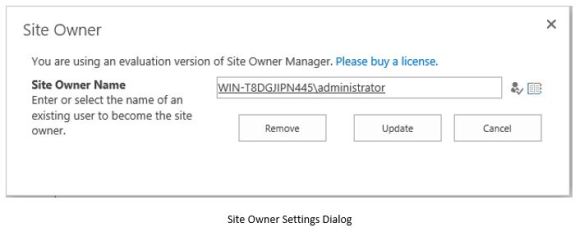
This solution introduces the concept of a Site Owner. The Owner would be the primary point of contact for a site – and their name would be prominently displayed on each page of the site for easy identification. An owner can be identified at time of site-provisioning, in advance or through analysis of site content and permissions. Administrators can manage and assign site owners though an easy to use interface as well as quickly identify sites with missing owners and stale or inactive owners that need updating. Administrators can define if the owner is an individual or a SharePoint Group.

capture1

capture2

Requirements

  • SharePoint 2013/2016/2019 Server (Standard or Enterprise)
    • SharePoint 2019 compatibility limited to Classic Experience sites
    • This will NOT work with SharePoint Online


Download Links

Click here to download the Site Owner Manager User Guide

Click here to download Site Owner Manager for SharePoint 2013/16/19

The product will run in Evaluation Mode for 15 days after it is first installed. During the evaluation only the first 5 sites in any web application will be scanned.

You can also buy a license and activate the full version of the product. The solution is licensed per-farm (not per user or front-end like a lot of other solutions).

Site Owner Manager License  $499.00 USD

Site Owner Manager License + 1 Year Maintenance/Support $749.00 USD

Original Article Below

If you’re like us you have struggled with this at one point or another: Who ‘owns’ a SharePoint site. We define the owner as the main business or technical contact for the site – the user responsible for the overall content, permissions, and management of the site. This is another area where SharePoint is lacking – sure there is an ‘Owners’ permission group – but that could have many users in it. It really does not identify the single point-of-contact we want to manage. When we set out to design our new templates one requirement was that we collect and display the site owner in the footer of every page so visitors had a way to identify and contact the site owner without a lot of difficulty or calling the helpdesk to inquire.

Our Site Owner control is deployed at the site collection level and is built-in to our site definition (you can also feature-staple it into existing site templates). Code in the master page renders the footer with the Site Owner stored in a property-bag:

When our users provision a new site, they are prompted to specify a Site Owner. The site cannot be provisioned without making a choice here:

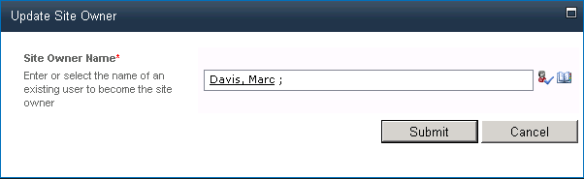
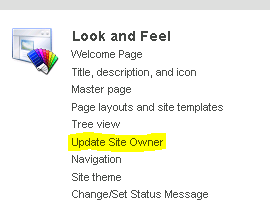
Site Administrators can easily update this property at a later time via the Site Settings page:

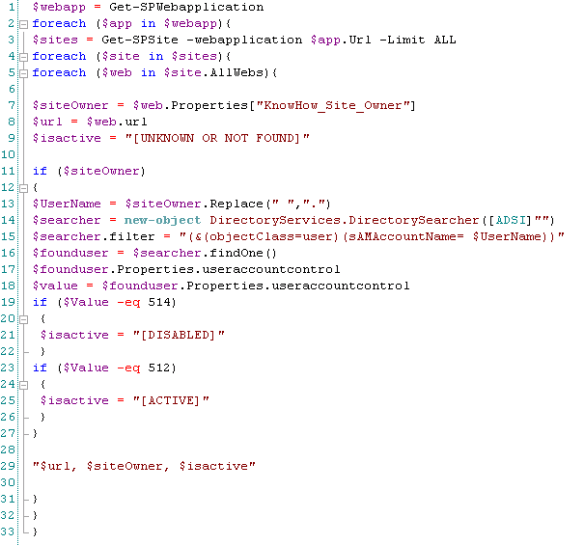
Now this is all nice and good – users can identify the site owners and we reduced calls to our helpdesk and SharePoint support teams. But here is the cool bit. With a little PowerShell, we can instantly produce a report of all of the site owners (along with their site data) and marry that back to Active Directory to see if any of the users are disabled or deleted. This way we can make sure the Site Owner values are correctly populated and active users are managing these sites. Also great for sending out bulk-emails to the Site Owners when maintenance is required or changes are being deployed into their sites:

So there is our take on displaying and managing SharePoint Site Owners. Hope you found it interesting. Be sure to look for my tweets and blog updates from the SharePoint Connections Conference starting March 26th.

Download the free evaluation of Site Owner Manager Today. Click here for details!

Exchange/Outlook Integration with SharePoint

Ok I know what you’re thinking, SharePoint 2010 already has web parts that can talk to Exchange and render your inbox, calendar, etc. right on a page. Why change them? Because, for the most part, we found that trying to shoehorn OWA functionality into a web part is not what our users are looking for. We have rich-clients (Outlook) and a good remote experience (OWA) so why try to shove all that onto a SharePoint page (see: http://en.wikipedia.org/wiki/Turducken). We also ran into usability issues: They require integrated authentication to work properly for starters (which is an issue for us with external access secured by UAG forms authentication) and the branding does not work well with our designs. I am debating the wisdom of why you would want to have your inbox or calendar in a web part anyway – it’s not very functional. On the other hand, rolling up your inbox, calendar, and tasks data into a web part is appealing – and allowed us to demonstrate how to integrate other systems into our SharePoint Intranet.

This web part began as an exercise on how to 1: Integrate external systems into SharePoint. 2: Demonstrate how to present that data. And 3: Serve as a test-bed for future web parts using features like Ajax (which we used to develop the SalesForce Chatter web part, described in an earlier post). Our criteria for the web part was simple: rollup data from a user’s Exchange mailbox and present total number of unread messages, next scheduled meeting/event, and top 3 open tasks.

Above: The My Outlook web part.

The web part was surprising simple to build – thanks to Exchange Web Services (http://msdn.microsoft.com/en-us/library/bb204119). The only hiccup we had with the design was authentication. EWS can use the default credentials of the user – but the double-hop condition from the web server to Exchange will render that option useless. So we created an account that has read-only permissions on user mailboxes so the web part can gather the information on the user’s behalf. You can also use Kerberos delegation with EWS if you have SharePoint setup to use it.

Each of the items is also a hyperlink to the respective page on OWA – so you can access your inbox, calendar, and tasks – but without trying to fit it into your page layouts.

We have more plans for EWS too – including a free/busy timeline in a user’s My Site profile – so colleagues can easily check each other’s availability.

Keep checking back – greater things to come. Also – be sure to look for my tweets and blog updates from the SharePoint Connections Conference in March.

SalesForce Chatter Integration to SharePoint – Part 2

UPDATE: Click here to download the Chatter for SharePoint solution.

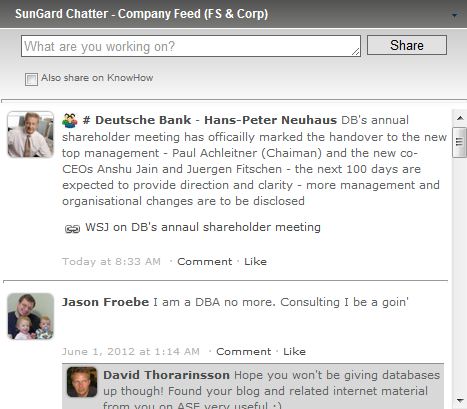
So we just finished the second phase of our SalesForce Chatter integration efforts – the displaying of feeds and basic wall-functionality: Posts, Comments, Groups, Tags, and Likes.

Here’s what it looks like:


I described the basic workings of the web part in an earlier article (https://marcrdavis.wordpress.com/2012/02/11/salesforce-chatter-integration-to-sharepoint/) so please check that out for the details. I think it worked out very well. We added the ability to cross-post to your SharePoint profile when updating Chatter, nice. We also added properties to control the number of feed items returned, the cache and refresh timeouts, and options to produce debugging information per-user so we can trace issues in production.

Users who have authorized our intranet on their Chatter profile get the full experience above – they can post, like (or unlike), and comment on items. If they have not done the authorization step yet (or it was revoked), then users will get a read-only view of the All Company feed (which is done by adding a SalesForce API-enabled account in the web part configuration). Read-Only users are invited to authorize the app so they can get the full experience:

Clicking the link starts the authorization process:

The biggest challenge we had with the design was the Chatter API rate-limit of 200 requests per user, per application, per hour. We had to get creative with caching so we would not run over the limit – especially for the read-only view.

The goal here was not to reproduce Chatter or all of the Chatter features – but rather bring the feed data and the basic social experience into our SharePoint Intranet. Links, hashtags, and attachments are redirected to a new browser window that opens to the full Chatter web application. SalesForce has been working on a version of this web part for some time – but it is still in beta and not widely available. The version we tested also had a requirement of SSL on the SharePoint front-end servers. Since we offload SSL on our load-balancers, we could not use their web part properly. Ours does use SSL to talk to SalesForce (so the feed is secure) but we don’t need to have SSL on the web applications. Our web part is also not encumbered by the SalesForce branding – so it fits in perfectly.

The next phase will continue to integrate the platforms further, with indexing Chatter so it can be returned in SharePoint search results. We may also look to embed the wall-experience in the user’s profile page.

That’s it for now – look for more on this soon. Be sure to look for my tweets and blog updates from the SharePoint Connections Conference in March. Take care.

SharePoint Connections 2012

Hi All – Going to be attending the SharePoint Connections Conference (DevConnections) in Las Vegas the week of March 26th. Are you going? Lots of great sessions and collaboration opportunities. Look for my tweets and blog updates from the conference and more from me on SunGard’s SharePoint Intranet.

SalesForce Chatter Integration to SharePoint

UPDATE: Click here to download the Chatter for SharePoint solution.

Hi everyone – sorry it’s been awhile between posts but got really busy at the end of the year. This article continues my series on SunGard’s corporate Intranet and the custom development we’ve done. As we were designing the branding we had some challenges around where to put some of the native controls and ribbon elements – especially two in particular: ‘Tags and Notes’, and ‘Like’. Since we effectively hid the ‘Browse’ tab, those default ribbon icons were MIA – but we didn’t want to lose that functionality. Another tab in the ribbon seemed the most logical place, and would serve as way to integrate other social aspects into SharePoint.

Being new to working with the SharePoint Ribbon, I looked on the net for examples – and found a great one on CodePlex: http://socialsharepoint.codeplex.com/ . This project helped me create the new ‘Share’ tab on our intranet and relocate the ‘Tags and Notes’ and ‘Like’ buttons. The tab also contains other sharing options, like ‘Email’, ‘RSS’, and ‘SalesForce Chatter’.
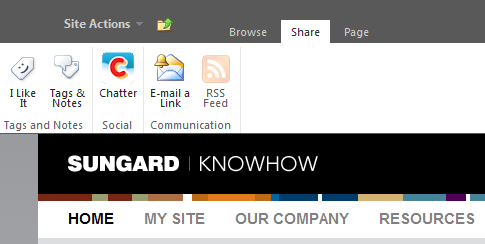
Above: The Share tab open on the ribbon.

When SunGard standardized on Chatter as their social platform, the focus became integrating Chatter into SharePoint as seamlessly as possible. We’ve approached this process in stages. The first stage was basic integration – common authentication, status updates, and shaing pages, documents, and list items. The first phase was achieved with the Share on Chatter feature in the ribbon, and a custom web part for posting status updates (detailed later in this post).
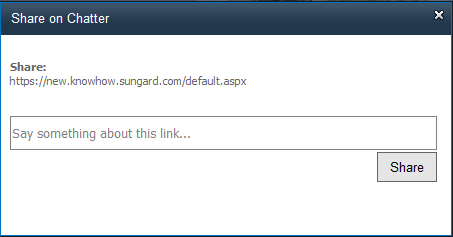
Above: Clicking on the Chatter ribbon icon opens a modal window with the selected page, item, or document as an embedded link. Users can add comments and share the item on Chatter.

The Ribbon enhancement and the web part use OAuth and the Chatter REST APIs to communicate with SalesForce. The user’s token and secrets are stored in hidden fields within their profile. Once they authorize the KnowHow Application on Chatter once, they can use any of the Chatter integration features we design.

Users can also post status updates simultaneously to both SharePoint and Chatter by means of our Status Update Web Part:
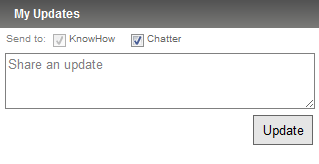
This web part is placed in everyone’s Sidebar (see: https://marcrdavis.wordpress.com/2011/09/27/persistent-personalized-content-in-sharepoint/ for details on the Sidebar) making it quick and easy to post updates. The user’s posts are sent to their SharePoint profile as well as posted on their Chatter feed.

The second stage, which is underway now, involves bringing the many different feeds in Chatter directly into SharePoint. Doing this has proved challenging, since only this weekend has the Chatter v24 API been rolled out in our Org. Our Feed web part will leverage the above common authentication and will allow site owners to place feeds directly on their sites. The web part uses the REST API to pull down feed data as a JSON array (http://json.codeplex.com/) and then parses that data into feed-items and their components. Then, with some CSS and markup, we format that data into a wall view. Properties in the web part control what feed is shown (personal, company, or group) and options for supplying default credentials for Chatter, which can be used to authenticate users that do not have a Chatter profile or have not authorized the site on their profile yet. In that mode, all feeds are read-only. The web part also leverages Ajax to provide dynamic updating of the feeds without the need to repost the entire page

Our Status Update web part will then get an overhaul – adding the user’s personal feed view right in their Sidebar.

I personally would have loved to see true threaded discussions, micro-blogging, and a wall-like interface in SharePoint natively (maybe v15) – would have saved me a lot of work. But we’ve been able to do some really cool things with these two platforms and while getting them to place nice is a challenge, our end users really enjoy the experience and this helps us drive more traffic to SharePoint now that they can seamlessly collaborate on our external social platform.

Up next – our take on Exchange and Outlook integration with SharePoint.

The Mega Menu

As I look back through my notes on the design of our Intranet I am amazed at what we achieved in (what I consider) a very short 7 months. SunGard didn’t simply build a SharePoint 2010 farm and add a few webparts, we designed a complete user experience. That would not have been possible without the collaboration of many groups within SunGard – primarily ISS and Corporate Marketing. They led the way with the branding and the wireframes, which left my development team time to focus on the functional aspects and together we merged our efforts into an amazing solution. One example of how that collaboration worked was in the custom navigation system we built for the intranet: The Mega Menu.

Once we had SharePoint 2010 running on our development servers and saw how the top (global) navigation worked we quickly determined it would not be suitable for how SunGard is structured – and how quickly that structure can change. We wanted a way to group and organize the many divisions and departments of SunGard by their functional areas. It had to be dynamic and easy to update – and at the topmost level we wanted it to be as simple as possible so it would be clear to the users where they needed to go.

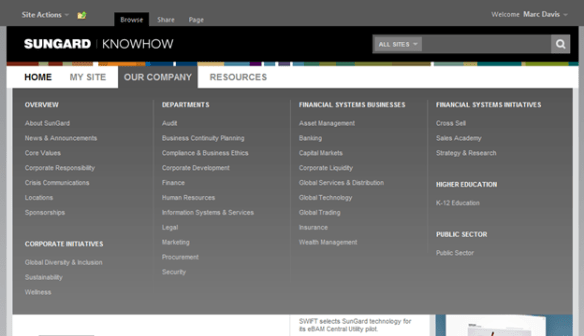
(The Mega Menu – Top Level, Home Page)

The Mega Menu sits immediately below the Header/Searchbar and overrides (via feature staple) the native global navigation. The first two menu options, HOME and MY SITE are fixed. Home always returns you to the intranet home page and My Site takes you to your personal page on SharePoint. When you are in your personal site or the My Site, the top navigation expands, adding links for MY NEWSFEED and MY PROFILE:
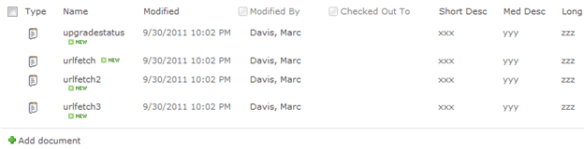
The last two menu options are part of the dynamic menu system. Their contents are managed by a custom SharePoint list, stored in the root site collection. As users mouse-over these menu options they expand into the Mega Menu:

The Mega Menu can have anywhere from 1 to 4 columns, and within those columns there is no limit (other than screen space and your personal sanity) to the number of categories or items you can have. In this example, The Our Company menu presents the many departments and businesses organized by category and division. Users simply click on the option and are taken to that site’s home page.

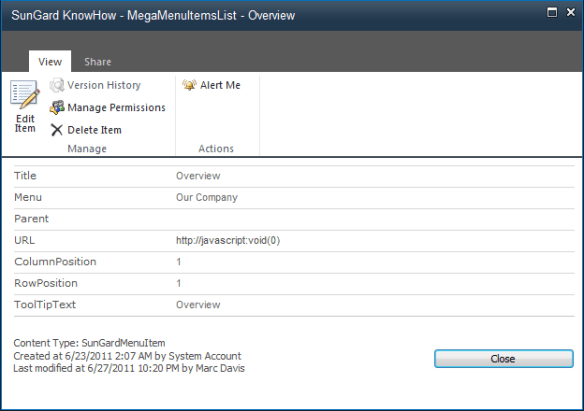
The menu system is extremely easy to edit – since it is a normal list in SharePoint. Options can be added, removed, or moved as necessary:
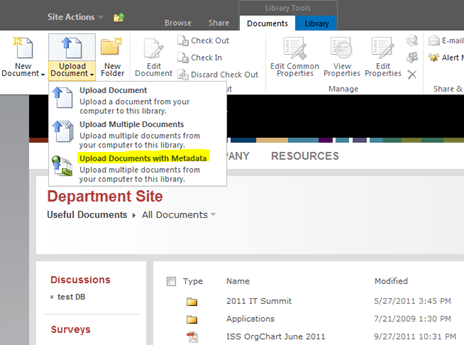
(View of an entry in the Mega Menu items list)

The Mega Menu adds value by allowing us to present a logical view of our Intranet. It makes it easier for our users to find the content they are looking for and contributes to their positive experiences with the system. It’s another example of how SunGard is expanding and enhancing SharePoint 2010 – and a testament to how flexible the platform truly is.

Coming up… I’ll talk about how SunGard is integrating SalesForce Chatter into its Intranet – via custom-designed webparts and enhancements to the SharePoint Ribbon.

Want to know more – look for me at the SharePoint Conference next week in Anaheim and chat me up on all things SharePoint. Follow me on twitter for updates from the conference: http://twitter.com/#!/marcrdavis
Common Properties Editor

Hi all – another post on how SunGard is enhancing their user’s experiences with SharePoint 2010. This one is closely related to the last post regarding the Multiple Document Upload with Required Fields. After we deployed that solution, the next logical step was to give our users the ability to edit the common properties of multiple documents already in the library.

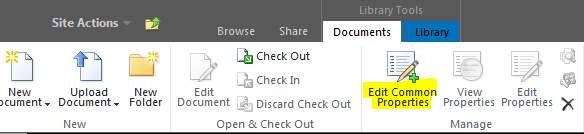
(The Edit Common Properties ribbon button – only available when 2 or more items are selected)

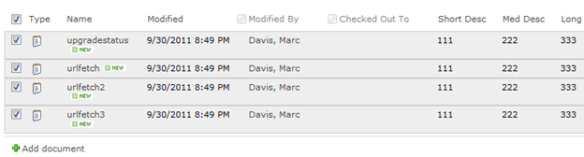
(4 documents selected)

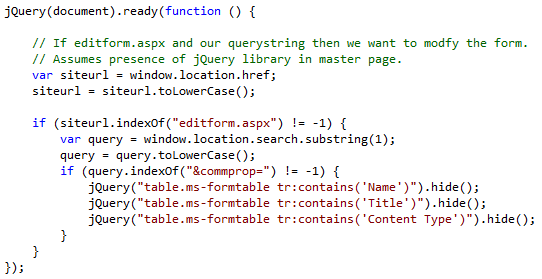
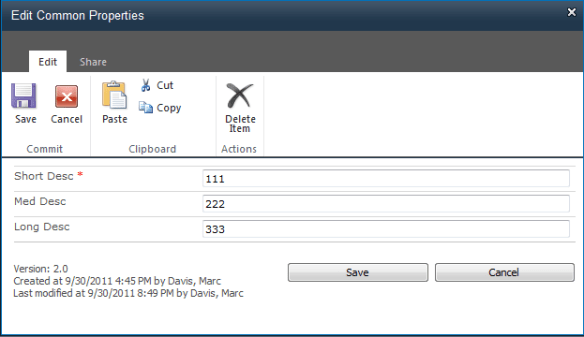
When you click on the button, the feature collects the selected items and builds a list of the common fields. It then opens the property editor. We’re using the native editform.aspx page (unmodified) and some jQuery to hide the unwanted fields:

(The Common Properties Editor modal window, before changes. Only the values common to all items are shown.)

Make your changes and click ‘Save’. An event handler for itemUpdating takes care of the changes. The selected documents properties will be updated accordingly:

Again – it is a really simple feature that adds a lot of value and saves our users time. Coming up next – a look at the custom navigation system that SunGard designed for their intranet – The Mega Menu.

Want to know more – look for me at the SharePoint Conference next week in Anaheim and chat me up on all things SharePoint. Follow me on twitter for updates from the conference: http://twitter.com/#!/marcrdavis