Exchange/Outlook Integration with SharePoint

Ok I know what you’re thinking, SharePoint 2010 already has web parts that can talk to Exchange and render your inbox, calendar, etc. right on a page. Why change them? Because, for the most part, we found that trying to shoehorn OWA functionality into a web part is not what our users are looking for. We have rich-clients (Outlook) and a good remote experience (OWA) so why try to shove all that onto a SharePoint page (see: http://en.wikipedia.org/wiki/Turducken). We also ran into usability issues: They require integrated authentication to work properly for starters (which is an issue for us with external access secured by UAG forms authentication) and the branding does not work well with our designs. I am debating the wisdom of why you would want to have your inbox or calendar in a web part anyway – it’s not very functional. On the other hand, rolling up your inbox, calendar, and tasks data into a web part is appealing – and allowed us to demonstrate how to integrate other systems into our SharePoint Intranet.

This web part began as an exercise on how to 1: Integrate external systems into SharePoint. 2: Demonstrate how to present that data. And 3: Serve as a test-bed for future web parts using features like Ajax (which we used to develop the SalesForce Chatter web part, described in an earlier post). Our criteria for the web part was simple: rollup data from a user’s Exchange mailbox and present total number of unread messages, next scheduled meeting/event, and top 3 open tasks.

Above: The My Outlook web part.

The web part was surprising simple to build – thanks to Exchange Web Services (http://msdn.microsoft.com/en-us/library/bb204119). The only hiccup we had with the design was authentication. EWS can use the default credentials of the user – but the double-hop condition from the web server to Exchange will render that option useless. So we created an account that has read-only permissions on user mailboxes so the web part can gather the information on the user’s behalf. You can also use Kerberos delegation with EWS if you have SharePoint setup to use it.

Each of the items is also a hyperlink to the respective page on OWA – so you can access your inbox, calendar, and tasks – but without trying to fit it into your page layouts.

We have more plans for EWS too – including a free/busy timeline in a user’s My Site profile – so colleagues can easily check each other’s availability.

Keep checking back – greater things to come. Also – be sure to look for my tweets and blog updates from the SharePoint Connections Conference in March.

SalesForce Chatter Integration to SharePoint – Part 2

UPDATE: Click here to download the Chatter for SharePoint solution.

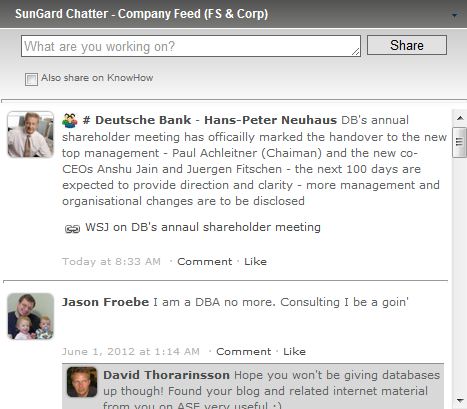
So we just finished the second phase of our SalesForce Chatter integration efforts – the displaying of feeds and basic wall-functionality: Posts, Comments, Groups, Tags, and Likes.

Here’s what it looks like:


I described the basic workings of the web part in an earlier article (https://marcrdavis.wordpress.com/2012/02/11/salesforce-chatter-integration-to-sharepoint/) so please check that out for the details. I think it worked out very well. We added the ability to cross-post to your SharePoint profile when updating Chatter, nice. We also added properties to control the number of feed items returned, the cache and refresh timeouts, and options to produce debugging information per-user so we can trace issues in production.

Users who have authorized our intranet on their Chatter profile get the full experience above – they can post, like (or unlike), and comment on items. If they have not done the authorization step yet (or it was revoked), then users will get a read-only view of the All Company feed (which is done by adding a SalesForce API-enabled account in the web part configuration). Read-Only users are invited to authorize the app so they can get the full experience:

Clicking the link starts the authorization process:

The biggest challenge we had with the design was the Chatter API rate-limit of 200 requests per user, per application, per hour. We had to get creative with caching so we would not run over the limit – especially for the read-only view.

The goal here was not to reproduce Chatter or all of the Chatter features – but rather bring the feed data and the basic social experience into our SharePoint Intranet. Links, hashtags, and attachments are redirected to a new browser window that opens to the full Chatter web application. SalesForce has been working on a version of this web part for some time – but it is still in beta and not widely available. The version we tested also had a requirement of SSL on the SharePoint front-end servers. Since we offload SSL on our load-balancers, we could not use their web part properly. Ours does use SSL to talk to SalesForce (so the feed is secure) but we don’t need to have SSL on the web applications. Our web part is also not encumbered by the SalesForce branding – so it fits in perfectly.

The next phase will continue to integrate the platforms further, with indexing Chatter so it can be returned in SharePoint search results. We may also look to embed the wall-experience in the user’s profile page.

That’s it for now – look for more on this soon. Be sure to look for my tweets and blog updates from the SharePoint Connections Conference in March. Take care.

SharePoint Connections 2012

Hi All – Going to be attending the SharePoint Connections Conference (DevConnections) in Las Vegas the week of March 26th. Are you going? Lots of great sessions and collaboration opportunities. Look for my tweets and blog updates from the conference and more from me on SunGard’s SharePoint Intranet.

SalesForce Chatter Integration to SharePoint

UPDATE: Click here to download the Chatter for SharePoint solution.

Hi everyone – sorry it’s been awhile between posts but got really busy at the end of the year. This article continues my series on SunGard’s corporate Intranet and the custom development we’ve done. As we were designing the branding we had some challenges around where to put some of the native controls and ribbon elements – especially two in particular: ‘Tags and Notes’, and ‘Like’. Since we effectively hid the ‘Browse’ tab, those default ribbon icons were MIA – but we didn’t want to lose that functionality. Another tab in the ribbon seemed the most logical place, and would serve as way to integrate other social aspects into SharePoint.

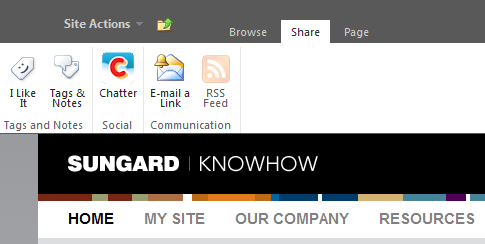
Being new to working with the SharePoint Ribbon, I looked on the net for examples – and found a great one on CodePlex: http://socialsharepoint.codeplex.com/ . This project helped me create the new ‘Share’ tab on our intranet and relocate the ‘Tags and Notes’ and ‘Like’ buttons. The tab also contains other sharing options, like ‘Email’, ‘RSS’, and ‘SalesForce Chatter’.

Above: The Share tab open on the ribbon.

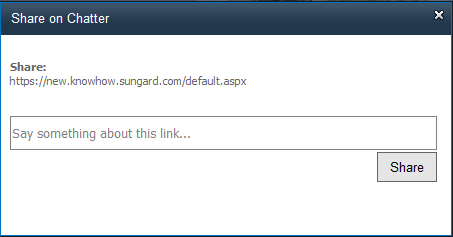
When SunGard standardized on Chatter as their social platform, the focus became integrating Chatter into SharePoint as seamlessly as possible. We’ve approached this process in stages. The first stage was basic integration – common authentication, status updates, and shaing pages, documents, and list items. The first phase was achieved with the Share on Chatter feature in the ribbon, and a custom web part for posting status updates (detailed later in this post).

Above: Clicking on the Chatter ribbon icon opens a modal window with the selected page, item, or document as an embedded link. Users can add comments and share the item on Chatter.

The Ribbon enhancement and the web part use OAuth and the Chatter REST APIs to communicate with SalesForce. The user’s token and secrets are stored in hidden fields within their profile. Once they authorize the KnowHow Application on Chatter once, they can use any of the Chatter integration features we design.

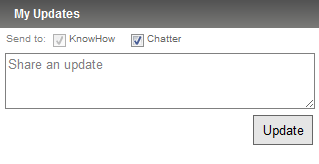
Users can also post status updates simultaneously to both SharePoint and Chatter by means of our Status Update Web Part:

This web part is placed in everyone’s Sidebar (see: https://marcrdavis.wordpress.com/2011/09/27/persistent-personalized-content-in-sharepoint/ for details on the Sidebar) making it quick and easy to post updates. The user’s posts are sent to their SharePoint profile as well as posted on their Chatter feed.

The second stage, which is underway now, involves bringing the many different feeds in Chatter directly into SharePoint. Doing this has proved challenging, since only this weekend has the Chatter v24 API been rolled out in our Org. Our Feed web part will leverage the above common authentication and will allow site owners to place feeds directly on their sites. The web part uses the REST API to pull down feed data as a JSON array (http://json.codeplex.com/) and then parses that data into feed-items and their components. Then, with some CSS and markup, we format that data into a wall view. Properties in the web part control what feed is shown (personal, company, or group) and options for supplying default credentials for Chatter, which can be used to authenticate users that do not have a Chatter profile or have not authorized the site on their profile yet. In that mode, all feeds are read-only. The web part also leverages Ajax to provide dynamic updating of the feeds without the need to repost the entire page

Our Status Update web part will then get an overhaul – adding the user’s personal feed view right in their Sidebar.

I personally would have loved to see true threaded discussions, micro-blogging, and a wall-like interface in SharePoint natively (maybe v15) – would have saved me a lot of work. But we’ve been able to do some really cool things with these two platforms and while getting them to place nice is a challenge, our end users really enjoy the experience and this helps us drive more traffic to SharePoint now that they can seamlessly collaborate on our external social platform.

Up next – our take on Exchange and Outlook integration with SharePoint.

The Mega Menu

As I look back through my notes on the design of our Intranet I am amazed at what we achieved in (what I consider) a very short 7 months. SunGard didn’t simply build a SharePoint 2010 farm and add a few webparts, we designed a complete user experience. That would not have been possible without the collaboration of many groups within SunGard – primarily ISS and Corporate Marketing. They led the way with the branding and the wireframes, which left my development team time to focus on the functional aspects and together we merged our efforts into an amazing solution. One example of how that collaboration worked was in the custom navigation system we built for the intranet: The Mega Menu.

Once we had SharePoint 2010 running on our development servers and saw how the top (global) navigation worked we quickly determined it would not be suitable for how SunGard is structured – and how quickly that structure can change. We wanted a way to group and organize the many divisions and departments of SunGard by their functional areas. It had to be dynamic and easy to update – and at the topmost level we wanted it to be as simple as possible so it would be clear to the users where they needed to go.

(The Mega Menu – Top Level, Home Page)

The Mega Menu sits immediately below the Header/Searchbar and overrides (via feature staple) the native global navigation. The first two menu options, HOME and MY SITE are fixed. Home always returns you to the intranet home page and My Site takes you to your personal page on SharePoint. When you are in your personal site or the My Site, the top navigation expands, adding links for MY NEWSFEED and MY PROFILE:

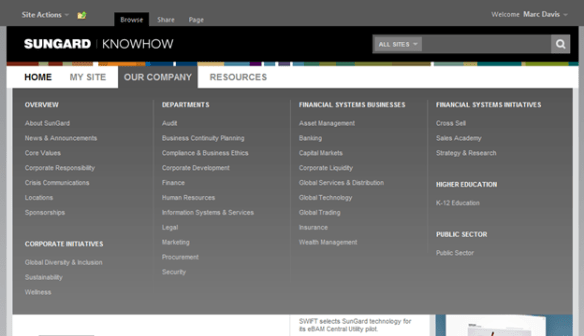
The last two menu options are part of the dynamic menu system. Their contents are managed by a custom SharePoint list, stored in the root site collection. As users mouse-over these menu options they expand into the Mega Menu:

The Mega Menu can have anywhere from 1 to 4 columns, and within those columns there is no limit (other than screen space and your personal sanity) to the number of categories or items you can have. In this example, The Our Company menu presents the many departments and businesses organized by category and division. Users simply click on the option and are taken to that site’s home page.

The menu system is extremely easy to edit – since it is a normal list in SharePoint. Options can be added, removed, or moved as necessary:

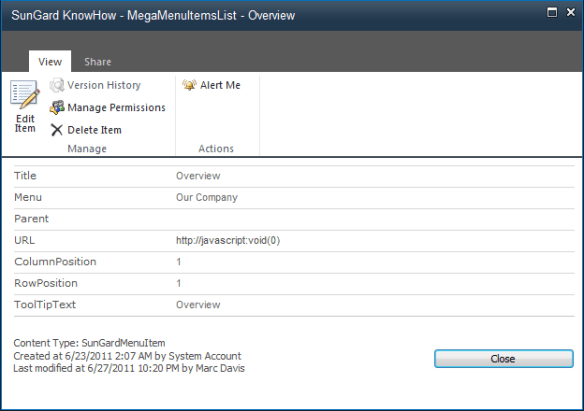
(View of an entry in the Mega Menu items list)

The Mega Menu adds value by allowing us to present a logical view of our Intranet. It makes it easier for our users to find the content they are looking for and contributes to their positive experiences with the system. It’s another example of how SunGard is expanding and enhancing SharePoint 2010 – and a testament to how flexible the platform truly is.

Coming up… I’ll talk about how SunGard is integrating SalesForce Chatter into its Intranet – via custom-designed webparts and enhancements to the SharePoint Ribbon.

Want to know more – look for me at the SharePoint Conference next week in Anaheim and chat me up on all things SharePoint. Follow me on twitter for updates from the conference: http://twitter.com/#!/marcrdavis

Common Properties Editor

Hi all – another post on how SunGard is enhancing their user’s experiences with SharePoint 2010. This one is closely related to the last post regarding the Multiple Document Upload with Required Fields. After we deployed that solution, the next logical step was to give our users the ability to edit the common properties of multiple documents already in the library.

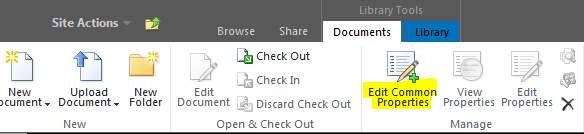
(The Edit Common Properties ribbon button – only available when 2 or more items are selected)

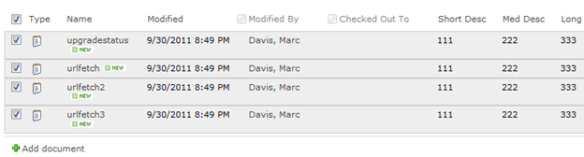
(4 documents selected)

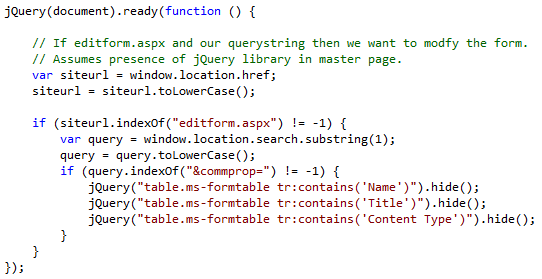
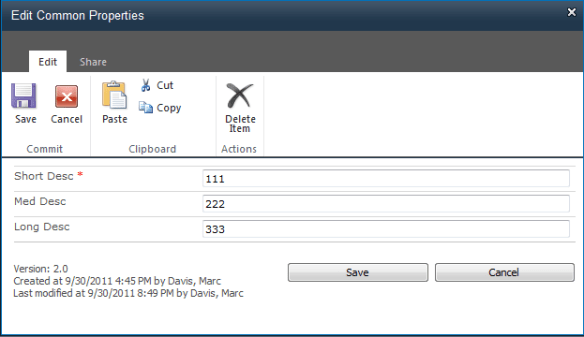
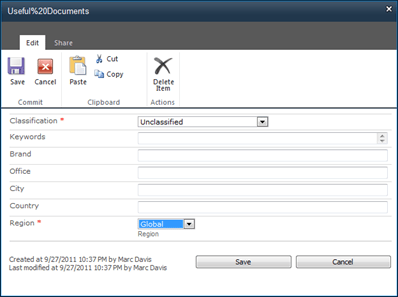
When you click on the button, the feature collects the selected items and builds a list of the common fields. It then opens the property editor. We’re using the native editform.aspx page (unmodified) and some jQuery to hide the unwanted fields:

(The Common Properties Editor modal window, before changes. Only the values common to all items are shown.)

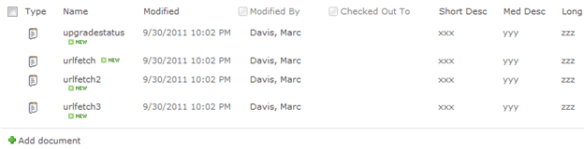
Make your changes and click ‘Save’. An event handler for itemUpdating takes care of the changes. The selected documents properties will be updated accordingly:

Again – it is a really simple feature that adds a lot of value and saves our users time. Coming up next – a look at the custom navigation system that SunGard designed for their intranet – The Mega Menu.

Want to know more – look for me at the SharePoint Conference next week in Anaheim and chat me up on all things SharePoint. Follow me on twitter for updates from the conference: http://twitter.com/#!/marcrdavis

Persistent Personalized Content in SharePoint

I’m agonizing over that title because it really does not do this feature justice. Let’s see if I can do better with the description and some pictures. Of all the work we did to bring this new Intranet to fruition – this is the one feature that sets it apart – and the one I am most proud of.

To start, we all should be familiar with SharePoint’s native ability to personalize web part pages. Great feature. Your users can create a personal view of a page and add/modify/arrange web parts as they like – and there are so many kinds of web parts available – stocks, weather, social apps, RSS feeds, audio/video podcasts, email, calendars, list aggregators, the list goes on forever. All that is wonderful – your users spend time to personalize a page and then they browse to another page. New page = new (or different) web parts.

When we sat down to design our new Intranet we wanted to have more web parts and more personalized content available – but how useful is that stock web part if you can only see it on your My Site or home page? Not very useful at all. We wanted these web parts to follow users as they navigated the site so the information would always be at their fingertips – but not taking up valuable screen real estate.

I give you: The Sidebar

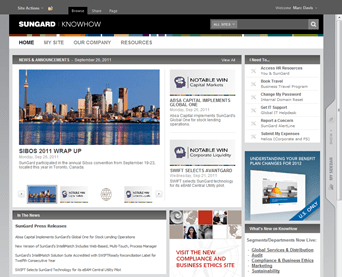
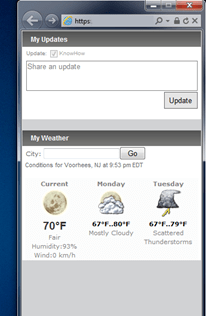
The Sidebar (collapsed)
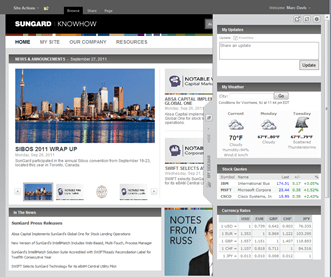
The Sidebar (open, pinned)

The simplest description is this: The Sidebar is a personal view of a custom web part page wrapped in jQuery. It exists in our custom master page as a series of DIVs and an iFrame – and being in the master page allows it to persist across all pages in our farm. The sidebar slides open and closed as users mouse over or away from the Sidebar tab. It can be pinned to the side (useful if you have a wide monitor) or it can be detached and docked to the side of your monitor in a separate browser window.

Rather than dwell on the technical issues with implementing this (oh there are a few and it took us months to get it right) let’s discuss how this affects the user experience. Users can now have their personal content follow them as they use the intranet. Their web parts are no longer anchored to a home page or their My Site – seldom to be seen. Administrators can push common web parts to all users – like social applications and company news – and because the Sidebar is persistent the users can consume the content at any time – from any page.

Podcast web parts are great – until you navigate away from the page and lose the feed. Put a podcast web part in your Sidebar and dock it to your desktop – Now you can stream content and browse without skipping a beat.

The Sidebar brings the personalization aspects of SharePoint 2010 to the forefront and, we find, has increased user interest in using and interacting with the web parts.

Options

The sidebar contains a few options, represented as buttons across the top-right of the Sidebar:

Detach, Refresh, and Personalize

Detach

As mentioned above, Detach will dock a copy of the Sidebar to the side of your active monitor in a separate instance of your browser. Why? Useful if you have any podcast web parts or other streaming content and you do not want that content reset or interrupted as you browse the rest of the web site. You can minimize it and have that content continue to run in the background.

Refresh

Does exactly what it says – it refreshes the Sidebar content.

Personalize

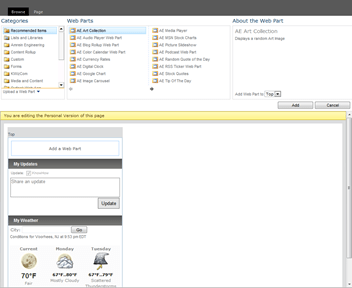
Choosing the Personalize option in the Sidebar opens a modal window to the web part page editor for the Sidebar:

Users simply choose web parts from the gallery and add them to the layout. They can move and modify existing web parts too. Also, Sidebar Administrators can seed web parts into everyone’s Sidebar by default. For example, all of our users receive the My Updates and My Weather web parts by default. Users can hide, but not delete administrator-defined web parts.

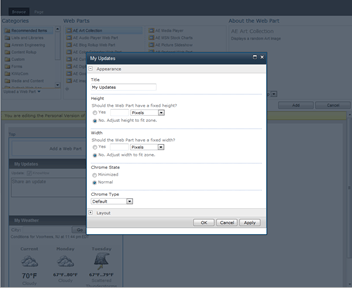
Another nice touch is how web part properties are modified. When you edit a web part, instead of the web part properties panel opening on the right of the screen, we have it opening in a modal window. This change was necessary due to the fixed-width layout of our sites but I think it is a much better way to handle the web part properties than the native right-panel view. (This change is based off an example on the Internet, don’t have the URL at the moment but I will update this post when I have it and give full credit to the author)

Pretty cool, right? Sadly you will not find a link at the end of this post with all the code you need to build your own Sidebar (SunGard Intellectual Property). I can point you in the right direction if you need some help with your own implementation.

Want to know more – look for me at the SharePoint Conference next week in Anaheim and chat me up on all things SharePoint. Follow me on twitter for updates from the conference: http://twitter.com/#!/marcrdavis

SharePoint Conference 2011

Heading out to the SharePoint Conference in Anaheim next week. Lots of interesting sessions and chances for collaboration. Going to use this new blog to talk about some of the work my team and I have done with SharePoint 2010 for SunGard. We’ve gone full-tilt with customizations and branding of the platform to produce a unique and powerful system for internal collaboration. One of the most interesting features I will be talking about is ‘The Sidebar’ – a persistent, collapsible webpart zone that allows users to maintain personalized content across all pages and sites in the SharePoint farm.

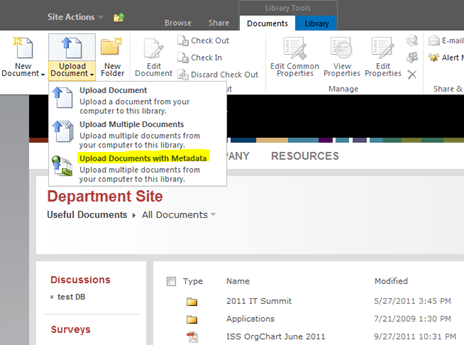
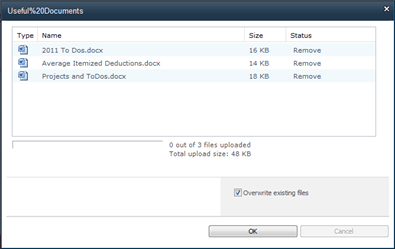
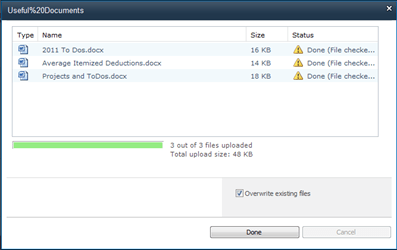
We’ve also designed a number of web parts and features to extend the usefulness of SharePoint. One that I will be talking about is the ‘Multi Document upload with Required Fields’ feature. Normally, when you upload multiple documents that have required metadata fields the documents upload checked-out – then you need to edit the properties one at a time and then check each item in. Huge waste of time. Our solution extends the native multi-document upload mechanism with the ability to set common properties for the documents as you upload them and automatically check them in. We have saved our users countless hours and keystrokes with this enhancement alone.

So look for more on these and other projects soon. And if you are attending the conference, look me up and I will be happy to show you all of the cool things SunGard is doing with SharePoint.

Find me on Linked-in: http://www.linkedin.com/in/marcrdavis


Welcome

Hi – setting up a new blog since my Windows Live one seems to have vanished into the ether. Will re-post some of my old, yet still relevant, material as well as some new things regarding SharePoint 2010 customizations, web parts, and branding plus my new pet project: Windows 7 Media Center and the many cool things you can do with this platform.