Chatter for SharePoint – Updated Features

Hi everyone! I wanted to share with you the really awesome enhancements to the Chatter for SharePoint solution. Your feedback has been terrific and has helped make this solution even more useful. Version 1.0.0.6 will be posted shortly on the blog is now available! Get it right here. Existing users can retract and add the new solution to get all of the updated features.

So – what’s new?

SharePoint Ribbon Integration

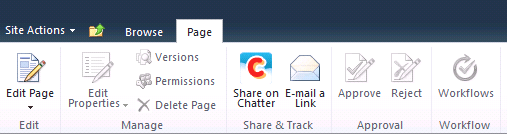
You can now share pages, list items, and documents within SharePoint from the ribbon! For sharing pages, click on the ‘Page’ tab and you’ll see a Chatter icon in the ‘Share & Track’ grouping:
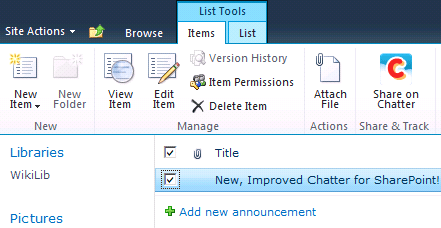
For Lists and Libraries, the Share on Chatter link will appear in the ‘Share & Track’ group in the Items/Documents ribbon:
When clicked, a modal window will appear with the selected object to share and a space for your comments:

And the result is visible in the Chatter feed:

Browsing within the Chatter Web Part

Prior to this version if you clicked on a user or group name within the feed window it would open a new browser session to SalesForce Chatter. Now, you can browse and post across groups and users within the web part!

A new breadcrumb trail shows your current feed location and gives you one-click access to the All Chatter feed. Also new is the ability to refresh the feed by clicking on the feed in the breadcrumb trail.

New Progress Animations

When you post or update feed items you now get progress indictors while the server is processing the request:

The animations will appear for the following actions: refreshing the feed, posts, like/unlike, and comments. The animations also appear relative to the item being updated – cool.

Web Application Settings

The solution now stores default properties in the web.config AppSettings. This was necessary to support the Ribbon Integration and allows any instance of the web part to use the configuration and license information so you have less to configure when adding the web part to other sites/pages.

Other Stuff

This version also includes a bunch of fixes and tweaks to the user interface, including:

  • Fixed issue where posting to group was being sent to the All Company feed
  • Fixed issue where jQuery undefined message would appear on some browsers
  • Fixed issue where posts on user feeds would appear with a group icon in the All Company feed
  • Fixed alert banner colors
  • Tweaked feed parent/actor display properties
  • Updated some help text and debug messages

Still in Progress

I am still working on the SharePoint Foundation version of the solution as well as Search integration — wanted to get the usability improvements done first. Look for these and more updates in a future release.

Thanks to everyone who contributed ideas – helps me make better solutions for you.
Coming Soon: Yammer for SharePoint

Just a quick update on some of the projects I am currently working on for SharePoint Snapple. First, I am pleased to announce that I will be releasing a new web part to integrate Yammer into SharePoint. The web part will have identical functionality as its Chatter counterpart. In addition, both solutions are getting some new features, including SharePoint Ribbon integration and (by popular request) support for SharePoint Foundation. Look for both of these updated solutions in the coming weeks.

SalesForce releases Chatter Web Parts

A few days ago SalesForce finally released their version (technically, designed by Persistent) of the Chatter Web Part for SharePoint. I had an opportunity to review this solution last year – and it was this project that compelled me to write my own Chatter Web Part. Why you ask? First, it is heavily SalesForce branded (understandable) which did not work well with our branding. Functionally, it had (and continues to have) a dependency on SSL for your web applications. It was never clear to me why this was a requirement. Sure, if my site was publicly accessible I would want my feed to be secure. But if you have an intranet, you may not be using SSL. Or what if you offload SSL and pass HTTP to your front-ends? Plus, the backend server is making the secure call to SalesForce for you – and that doesn’t require SSL on the web application. Then, it was the overly complex installation – plus multiple web parts for different sites – which in my opinion made it more difficult to deploy and quickly use.

Yes, this web part is free on the AppExchange. I think my version is a lot easier to install, configure, and use. I encourage you to try both and make your own choice.

SharePoint Connections: Day 3

Jumping around a bit today – going to attend some of the other tracks in SQL, HTML5, and Visual Studio. Look for me in CJQ201, VFN04, and VFN03. Hope everyone is having a great time. Lots of hits on the blog this week – appreciate the comments and look for me at the conference – will talk all things SharePoint.


SalesForce Chatter Web Part

You asked for it – the Chatter for SharePoint web part is now available! Download it right now and try it out in your SharePoint farm. The evaluation version is good for 15 days and will demonstrate all of the features of the web part – with only the minimum of nagging and annoying restrictions.

https://marcrdavis.wordpress.com/chatter-for-sharepoint/


Site and Farm-wide System Messages

9/5 UPDATE: The System Messages solution is now available for download! Click here for details.

So what the heck does that title mean? If you’ve been following my blog you already know what we’re talking about – SunGard’s SharePoint Intranet and all the cool things we are doing with SharePoint. This is the next installment – broadcasting informational and/or critical alerts to our Intranet users.

Useful for a variety of reasons: Alert users when a system or service is down; a new feature has been deployed; a new flavor of coffee is available in the kitchen on the 4th floor; the possibilities are endless.

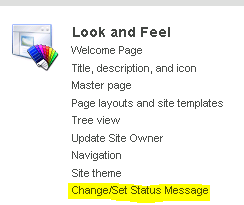
So this was fairly simple, thanks to SharePoint 2010’s native status messaging API – SP.UI.Status. We created an interface for site or farm administrators to set and control messages:

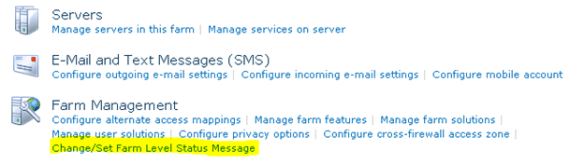
The setting of farm-wide messages is managed through Central Administration:

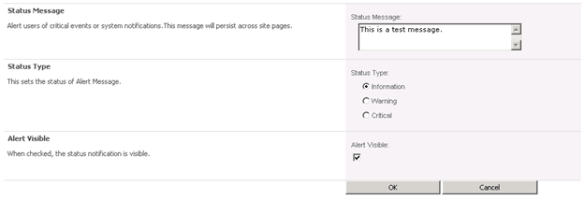
Administrators can then set the message text (supports embedded URLs), the alert type, and if the alert is visible:

The settings are stored in a property bag and picked up by code in our master page:

(Example above is incomplete for brevity – missing executeQueryAsync call and related code)

When alerts are active – they show up on the site pages (or farm-wide):

Informational:

Warning:

Critical:

Another simple feature that leverages and extends the native functionality of SharePoint by allowing us to broadcast messages to our Intranet community. There’s more to come – we’ve hardly scratched the surface on what we’re doing with SharePoint. Hope you found it interesting. Be sure to look for my tweets and blog updates from the SharePoint Connections Conference starting March 26th.

Managing and Identifying SharePoint Site Owners

1/26/2019: Site Owner Manager 2.0 is now available! Download it today!

The purpose of this solution is to help resolve a longstanding issue in SharePoint – Who owns a given site? Let’s start with defining who an ‘Owner’ is. While SharePoint has the concept of Site collection administrators (users with highly elevated permissions) it has no concept of who has responsibility for the content or upkeep of an individual site. In some cases they may be one and the same, but in many cases they are different people and with different levels of permissions on the site. Sites invariably have many users with Full Control permissions – but who is the single point-of-contact out of those people? There is the concept of the Site Author/Creator – but that is not exposed anywhere in the GUI – and that value is unalterable. Over time it may not represent the person responsible for the site they created.

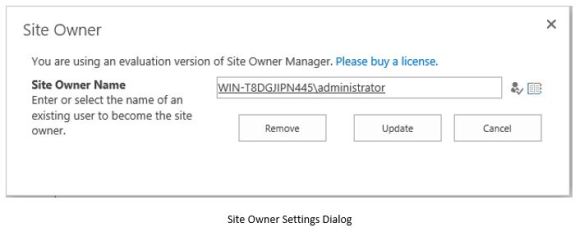
This solution introduces the concept of a Site Owner. The Owner would be the primary point of contact for a site – and their name would be prominently displayed on each page of the site for easy identification. An owner can be identified at time of site-provisioning, in advance or through analysis of site content and permissions. Administrators can manage and assign site owners though an easy to use interface as well as quickly identify sites with missing owners and stale or inactive owners that need updating. Administrators can define if the owner is an individual or a SharePoint Group.

capture1

capture2

Requirements

  • SharePoint 2013/2016/2019 Server (Standard or Enterprise)
    • SharePoint 2019 compatibility limited to Classic Experience sites
    • This will NOT work with SharePoint Online


Download Links

Click here to download the Site Owner Manager User Guide

Click here to download Site Owner Manager for SharePoint 2013/16/19

The product will run in Evaluation Mode for 15 days after it is first installed. During the evaluation only the first 5 sites in any web application will be scanned.

You can also buy a license and activate the full version of the product. The solution is licensed per-farm (not per user or front-end like a lot of other solutions).

Site Owner Manager License  $499.00 USD

Site Owner Manager License + 1 Year Maintenance/Support $749.00 USD

Original Article Below

If you’re like us you have struggled with this at one point or another: Who ‘owns’ a SharePoint site. We define the owner as the main business or technical contact for the site – the user responsible for the overall content, permissions, and management of the site. This is another area where SharePoint is lacking – sure there is an ‘Owners’ permission group – but that could have many users in it. It really does not identify the single point-of-contact we want to manage. When we set out to design our new templates one requirement was that we collect and display the site owner in the footer of every page so visitors had a way to identify and contact the site owner without a lot of difficulty or calling the helpdesk to inquire.

Our Site Owner control is deployed at the site collection level and is built-in to our site definition (you can also feature-staple it into existing site templates). Code in the master page renders the footer with the Site Owner stored in a property-bag:

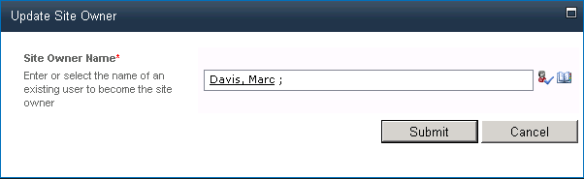
When our users provision a new site, they are prompted to specify a Site Owner. The site cannot be provisioned without making a choice here:

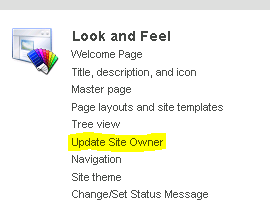
Site Administrators can easily update this property at a later time via the Site Settings page:

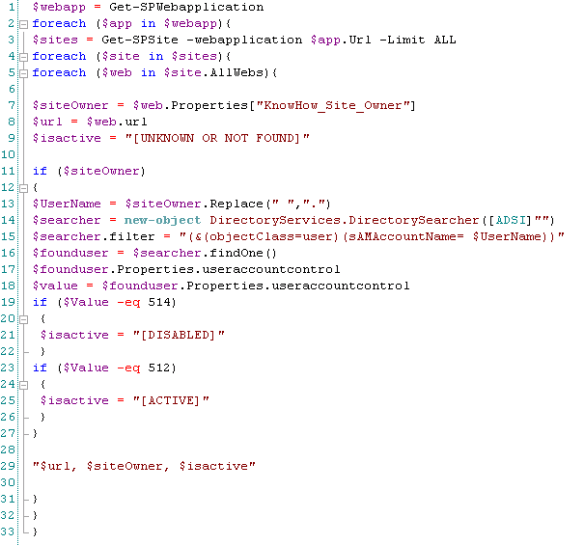
Now this is all nice and good – users can identify the site owners and we reduced calls to our helpdesk and SharePoint support teams. But here is the cool bit. With a little PowerShell, we can instantly produce a report of all of the site owners (along with their site data) and marry that back to Active Directory to see if any of the users are disabled or deleted. This way we can make sure the Site Owner values are correctly populated and active users are managing these sites. Also great for sending out bulk-emails to the Site Owners when maintenance is required or changes are being deployed into their sites:

So there is our take on displaying and managing SharePoint Site Owners. Hope you found it interesting. Be sure to look for my tweets and blog updates from the SharePoint Connections Conference starting March 26th.

Download the free evaluation of Site Owner Manager Today. Click here for details!